iPhone and iPad
How to fax from an iPhone
Your iPhone already has a document scanner built in. Scan the paperwork with the Notes app, open FaxBolt in Safari, and send it to any US or Canadian fax number — no app to install, no fax machine, no trip to a print shop.
Written by the FaxBolt team · last checked
Step 1 — scan the document with your iPhone
- Open Notes and create a new note.
- Tap the attachment button (the paperclip or camera icon) and choose Scan Documents.
- Hold the phone over the page — the camera detects the edges and captures automatically. Keep the page flat and well lit.
- Scan every page you need, then tap Save.
- Tap the share icon and choose Save to Files — the scan is saved as a PDF, which is exactly what you upload.
If the document is already on your phone, upload it from Files. FaxBolt accepts PDF, JPG and PNG — an iPhone photo saved as HEIC needs converting first, which is one more reason the Notes scan (already a PDF) is the easy path.
Step 2 — send it from Safari
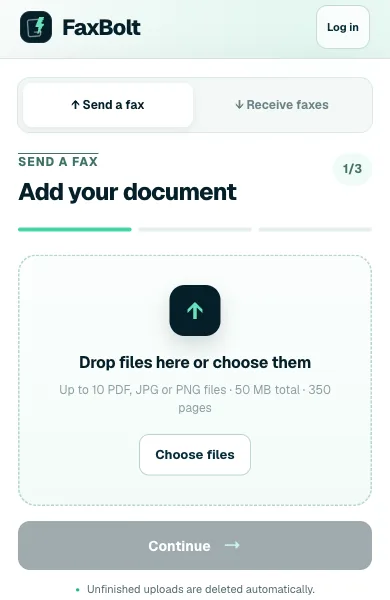
- Open faxbolt.com in Safari and tap Send a fax.
- Tap the upload area and pick the scan from Files or iCloud Drive.
- Type the recipient's fax number.
- Add a cover sheet if the recipient expects one — the free generator works on the phone too.
- Check the summary, confirm your email, and send.
Other ways to get the document into the fax
- From Files or iCloud Drive: tap the upload area and browse. A working PDF, JPG or PNG within the size and page limits uploads as it is; a password-protected or damaged PDF is rejected, so open it once to check.
- From Photos: works for JPG and PNG. iPhones save photos as HEIC by default, which fax services do not accept — set Camera → Formats to Most Compatible, or scan with Notes instead.
- From Google Drive, Dropbox or OneDrive: open the file in that app, share it to Files, then upload it.
- From an email attachment: press and hold the attachment, save it to Files, and upload it from there.
- With a fax app from the App Store: convenient if you fax weekly, but it ties billing to the App Store and needs updating. FaxBolt runs in Safari, so there is nothing to install — add the page to your Home Screen and it opens like an app.
Whichever route you take, the file must be a PDF, JPG or PNG. Word documents and HEIC photos need converting first; the Notes scanner sidesteps both because it saves a PDF.
Getting a readable scan
- Photograph on a plain, dark surface — the scanner finds the page edges by contrast.
- Avoid shadows from your own hands and head; move to a window or turn a lamp on.
- Faxes are pure black and white at low resolution, so a slightly over-exposed scan reads better than a dim one.
- Open the scan and check every page before you upload it. A page that is unreadable on screen is unreadable on the receiving machine.
- Crop out anything you do not want transmitted; the recipient prints exactly what you upload.
Why there is no fax app to install
FaxBolt runs in the browser, which on an iPhone means Safari or Chrome. It has access to the same Files, iCloud and Photos pickers that an installed app would use, so there is nothing to download, nothing to update, and no App Store subscription tangled up with your billing. Add the page to your Home Screen from the share menu and it opens like an app.
Frequently asked questions
Does the iPhone have a built-in fax feature?
No. There is no fax app in iOS and no way to dial a fax tone from the phone. Anything that faxes from an iPhone — a web service or an App Store app — hands the call to a provider on the other end.
Can an iPhone send a fax on its own?
Not directly — an iPhone has no fax modem and cannot dial a fax machine. It scans and uploads; an online fax service makes the actual phone call to the receiving machine.
How do I scan a document to fax on an iPhone?
Open Notes, create a note, tap the attachment button and choose Scan Documents. Capture each page, save, then share the scan to Files as a PDF ready to upload.
Can I fax a photo from my camera roll?
JPG and PNG photos upload fine; HEIC, the iPhone default, does not — set Camera → Formats to Most Compatible, or use the Notes scanner instead. A scan also reproduces better: it is straightened and contrast-corrected, while a snapshot keeps the shadows and the angle.
Does it work on an iPad?
Yes — the same steps in Safari on iPadOS, and the Notes scanner works the same way.
What does it cost to fax from an iPhone?
$4.99 for the first week, then $19.99 per month, with unlimited sending and receiving under fair use. You can prepare the fax and check the details before paying.